
How to use Grid
What each button does, on the real screens. In the app, the ? button on the Projects screen starts a two-minute guided tour.
Gestures
| iPhone and iPad | Mac | What it does |
|---|---|---|
| Tap | Click | Select, press a button |
| Double-tap | Double-click | Adjust a photo, type text |
| Long-press | Right-click | Menus, swap photos |
| Drag | Drag | Move, resize, place photos |
| Pinch | Pinch, scroll | Zoom |
| Twist two fingers | Twist on the trackpad | Turn a photo in its frame |
Keyboard shortcuts
On Mac, and on iPad with a keyboard.
- ⌘N
- New collage
- ⇧⌘I
- Import photos
- ⌘E
- Export
- ⌘Z / ⇧⌘Z
- Undo / Redo
- ⌘C ⌘X ⌘V ⌘D
- Copy, cut, paste, duplicate
- ⌫ / Esc
- Delete / Deselect
- ← → ↑ ↓
- Move one cell (⇧ to resize)
- ⌘[ ⌘] ⌥⌘[ ⌥⌘]
- Backward, forward, to back, to front
- ⌘↩ / ⌘R
- Adjust photo / Rotate 90°
- ⇧⌘A / ⇧⌘T
- Add area / Add text
- ⌥⌘N ⌥⌘D
- New page, duplicate page
- ⌥⌘J / ⇧⌥⌘J
- Join with next / Separate
- ⌥⌘← ⌥⌘→
- Previous page, next page
- ⌘= ⌘- ⌘0
- Zoom in, out, to fit
- ⌥⌘I
- Inspector
 123456
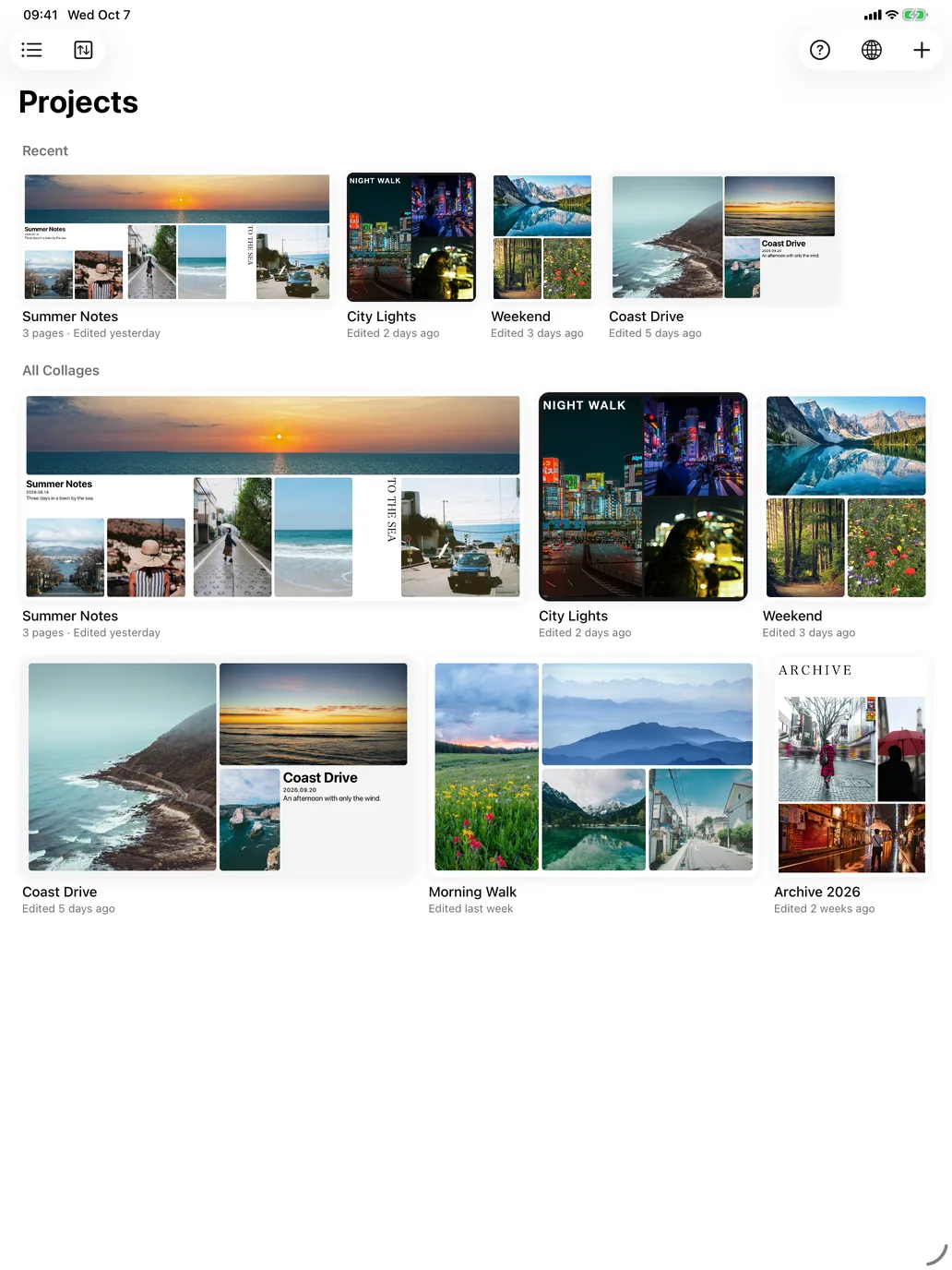
The Projects screen
Your collages, each shown whole in its own shape.
- Tiles or listSwitch between tiles and a list.
- BackupExport every collage as a ZIP, or import from one: to move to another device, or to keep a copy.
- ? Guided tourStarts the two-minute tour. Skip it any time and pick up where you left off.
- LanguageEnglish, 日本語, 简体中文 or the system language.
- + New collagePick a size and a layout.
- A collageTap to open. Long-press to rename, export as ZIP or delete.
 12345678910111213
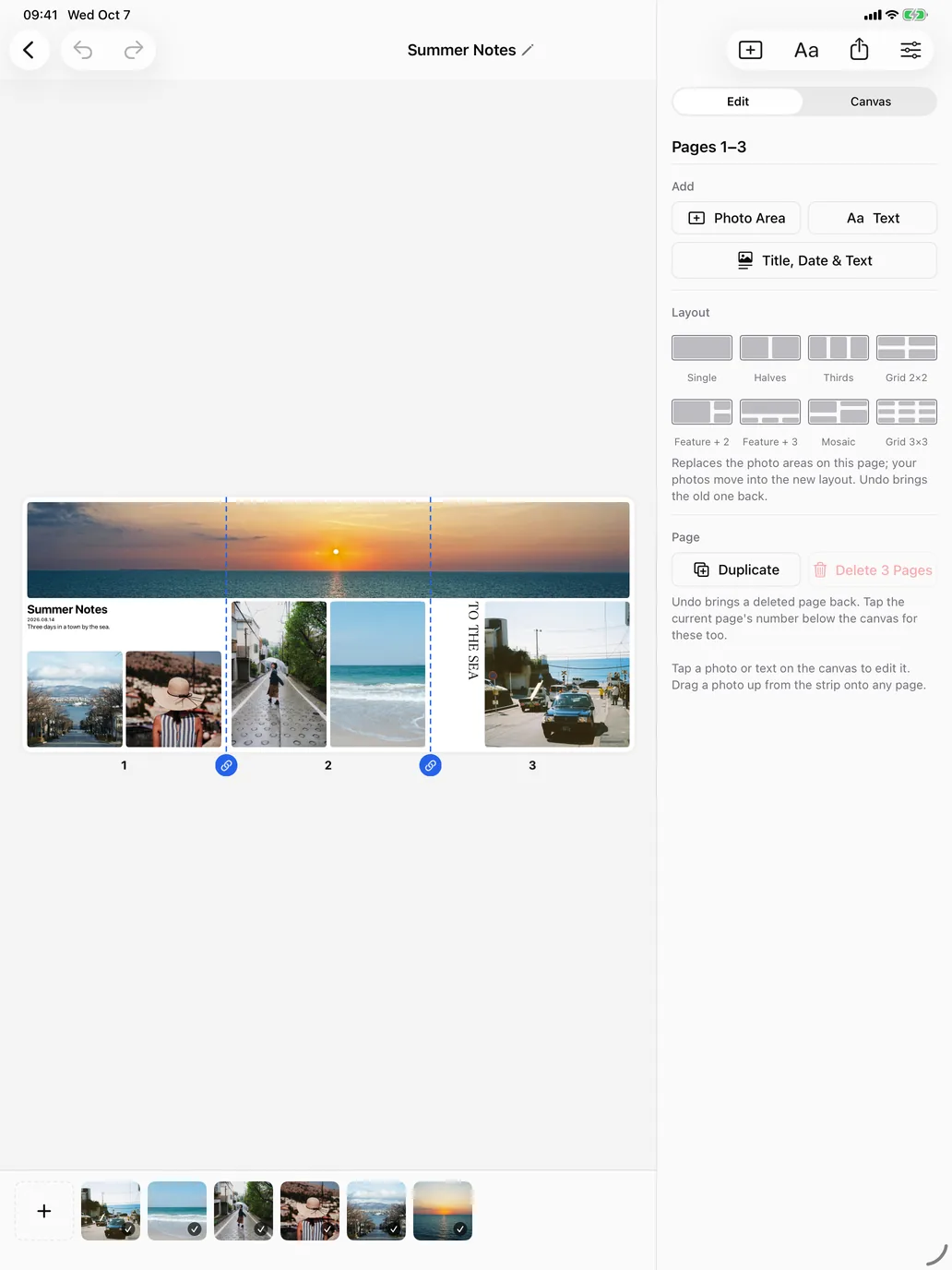
The editor
The canvas in the middle, your photos below, the inspector on the right.
- ‹ BackBack to Projects. Your work saves itself.
- Undo, RedoOne step at a time.
- TitleTap to rename the collage.
- Add a photo areaAdds a frame in the first free spot.
- TextAdds a title, text, or a title-date-text block.
- ExportSave or share as images.
- InspectorShows or hides the panel on the right.
- Edit / CanvasSettings for what's selected, or for the whole collage.
- CanvasTap to select, drag to move, pull a handle to resize. Double-tap to adjust a photo or type text; long-press to swap photos.
- LinkJoin or separate neighboring pages. Photos can run across joined pages.
- Page numberTap to go to a page. Tap the current page's number for its menu; long-press and drag to reorder.
- + Import photosOpens a large photo picker. Photos line up in the order you pick them.
- Photo stripDrag a photo up onto a frame, or tap it to fill the selected frame. ✓ means it's placed.
 123456789
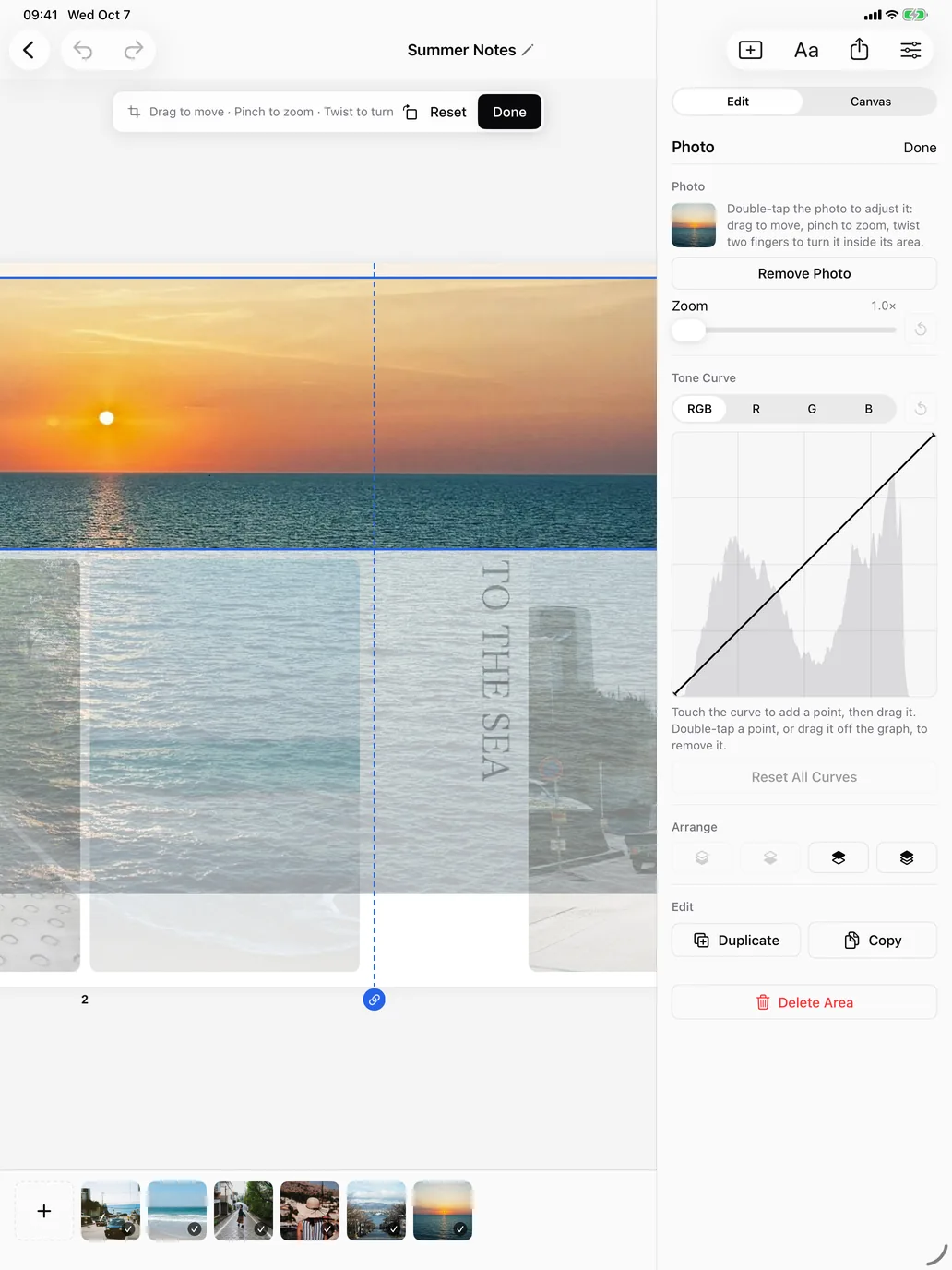
Adjusting a photo
Double-tap a photo to move it inside its frame; the frame stays put.
- Adjust barDrag to move, pinch to zoom, twist to turn. It settles on right angles.
- Rotate 90°Turns the photo a quarter right.
- ResetPuts position, zoom and angle back.
- DoneFinishes adjusting.
- Remove photoKeeps the frame, removes the photo.
- ZoomZoom with a slider, too.
- Tone curveTouch the curve to add a point, then drag it. Switch between RGB and R, G, B.
- ArrangeChanges which area is on top.
- Duplicate, copy, deleteDuplicate, copy or delete the area.
 123456789
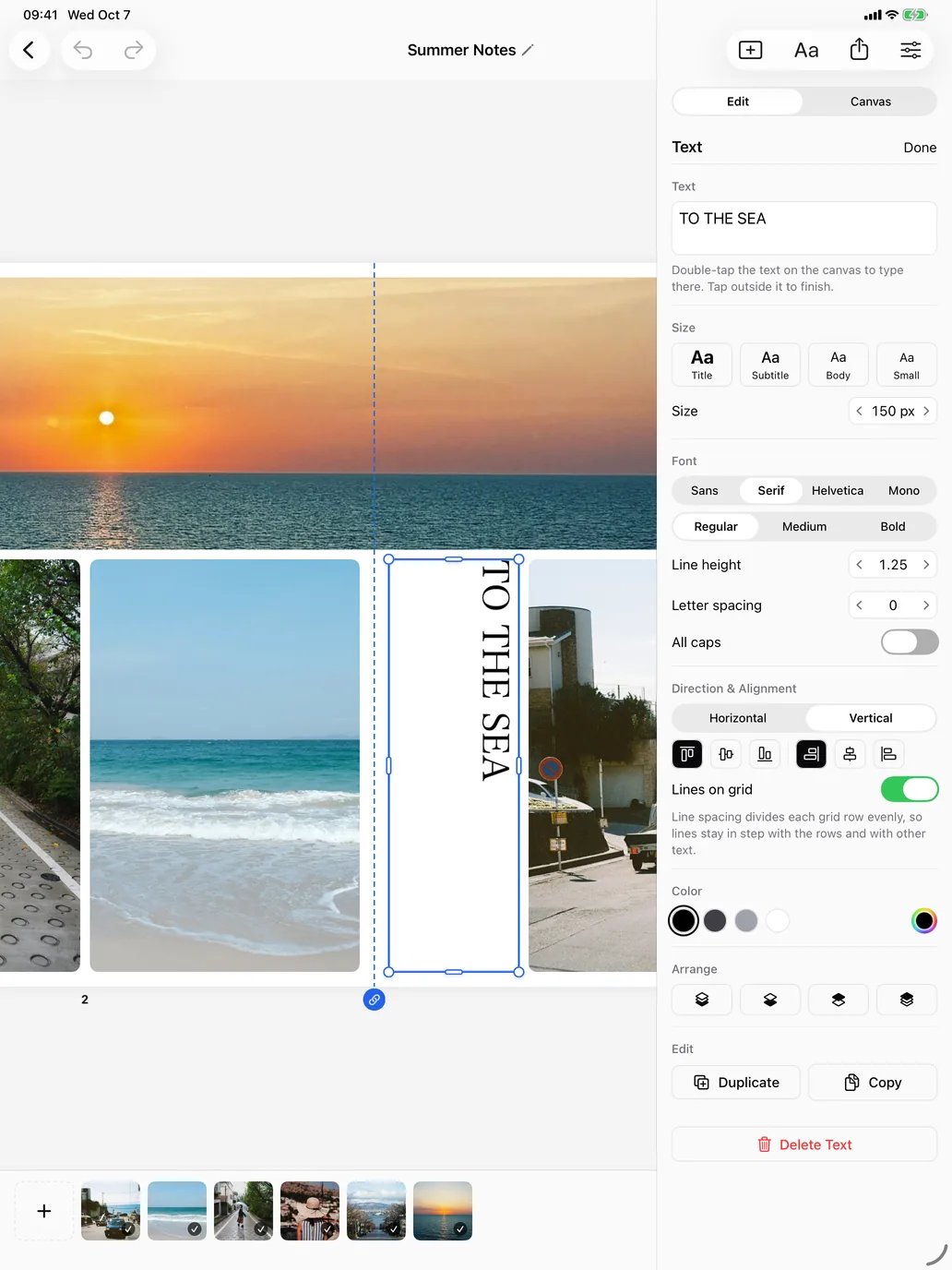
Adding text
Lines of text follow the grid's rows. Vertical writing works too.
- Text on the canvasDouble-tap to type in place; tap outside to finish.
- Text fieldYou can type here, too.
- SizeTitle, Subtitle, Body, Small. Slide on the number to fine-tune.
- FontSans, Serif, Helvetica, Mono, and weight.
- Line height, letter spacingSlide, or tap to type a number.
- DirectionHorizontal or vertical.
- AlignmentWithin lines, and where the block sits.
- Lines on gridSpaces lines to match the grid's rows.
- ColorCommon colors, or any color.
 123456
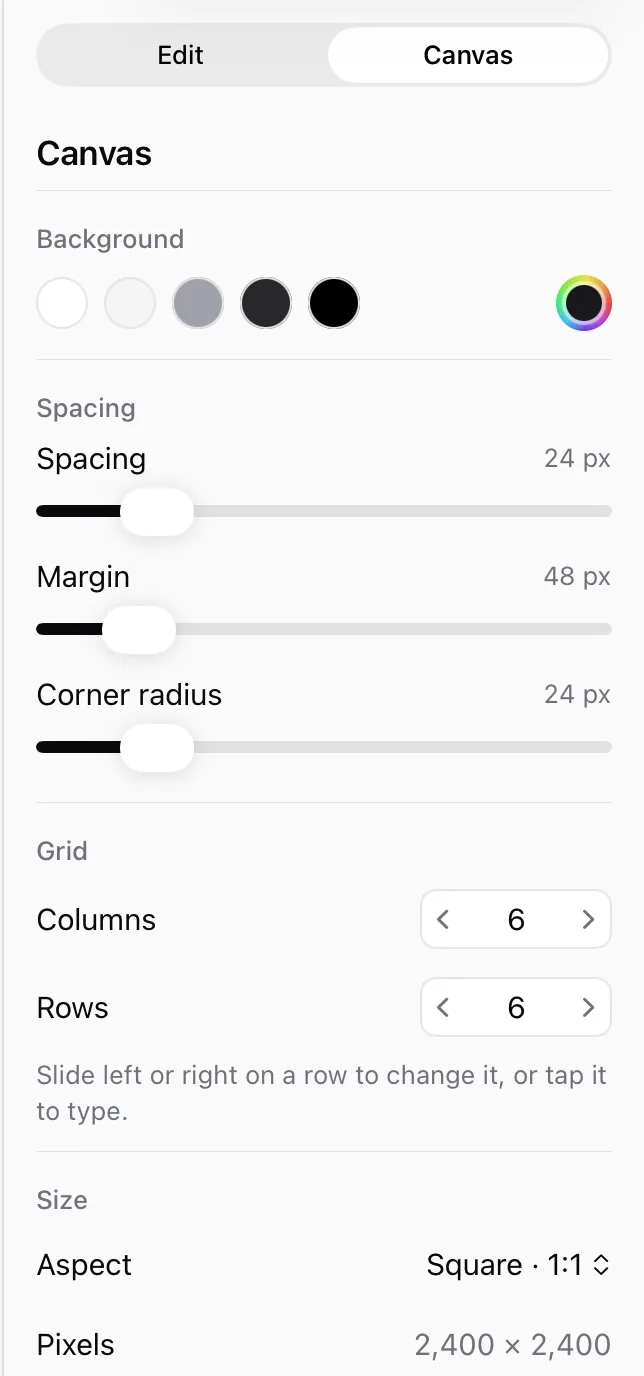
The whole collage
The inspector's Canvas tab applies to every page.
- BackgroundPick a color; the last one is any color.
- SpacingThe gap between frames.
- MarginAround the edge of the canvas.
- Corner radiusHow round the photos' corners are.
- Columns, rowsSlide to change; your layout keeps its proportions.
- SizeSquare, Portrait, Story, Landscape, Wide, A4.
 123456
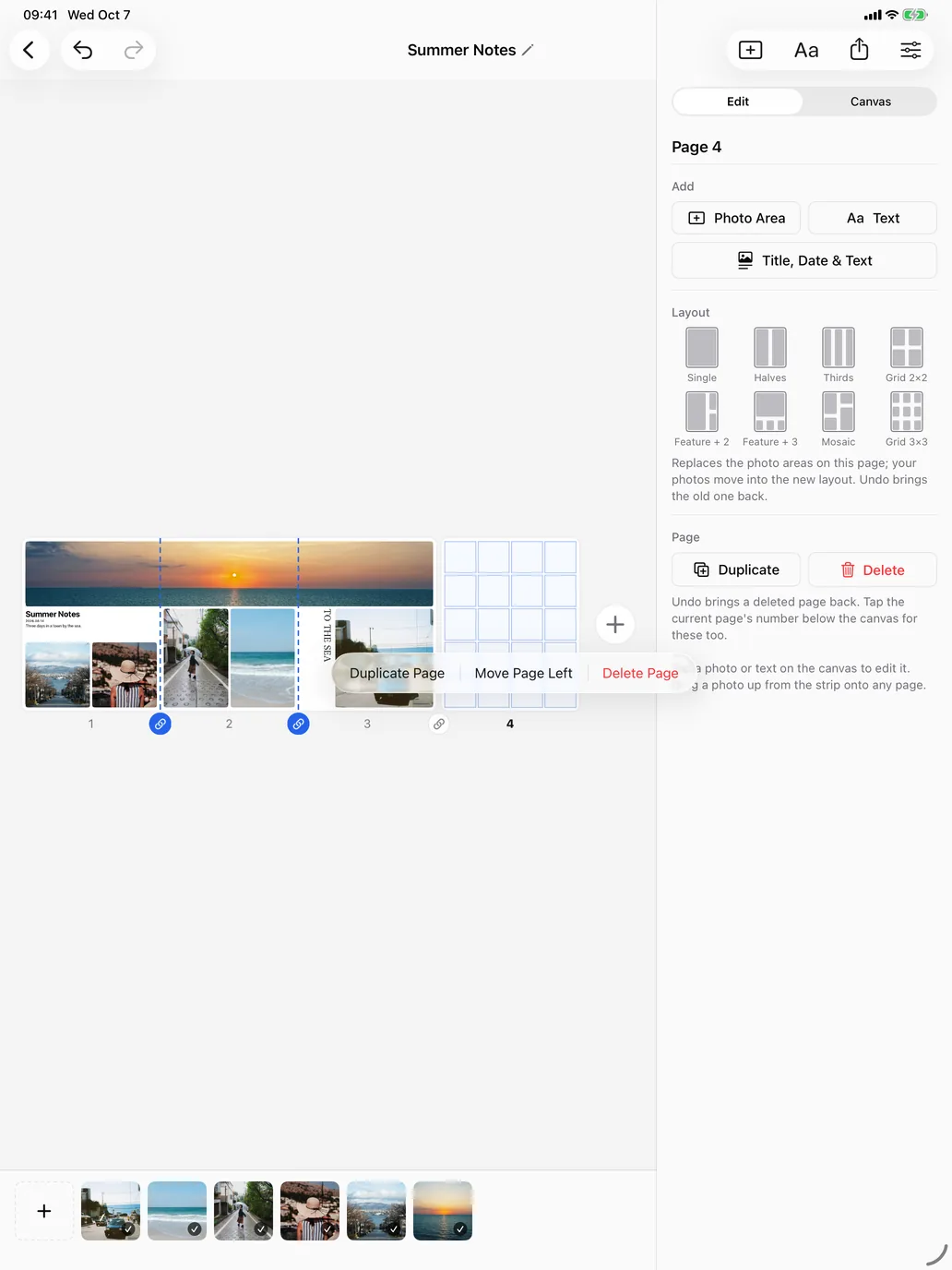
Pages
As many pages as you like in one collage, ready for a carousel post.
- Current page numberTap for its menu (duplicate, move, delete). Long-press and drag to reorder.
- Page menuUndo brings a deleted page back.
- Link (joined)Tap to separate the pages.
- Link (separate)Tap to join them.
- + Add pageAdds a blank page. Long-press to duplicate the current page.
- Page in the inspectorWith nothing selected: duplicate and delete.
 123456
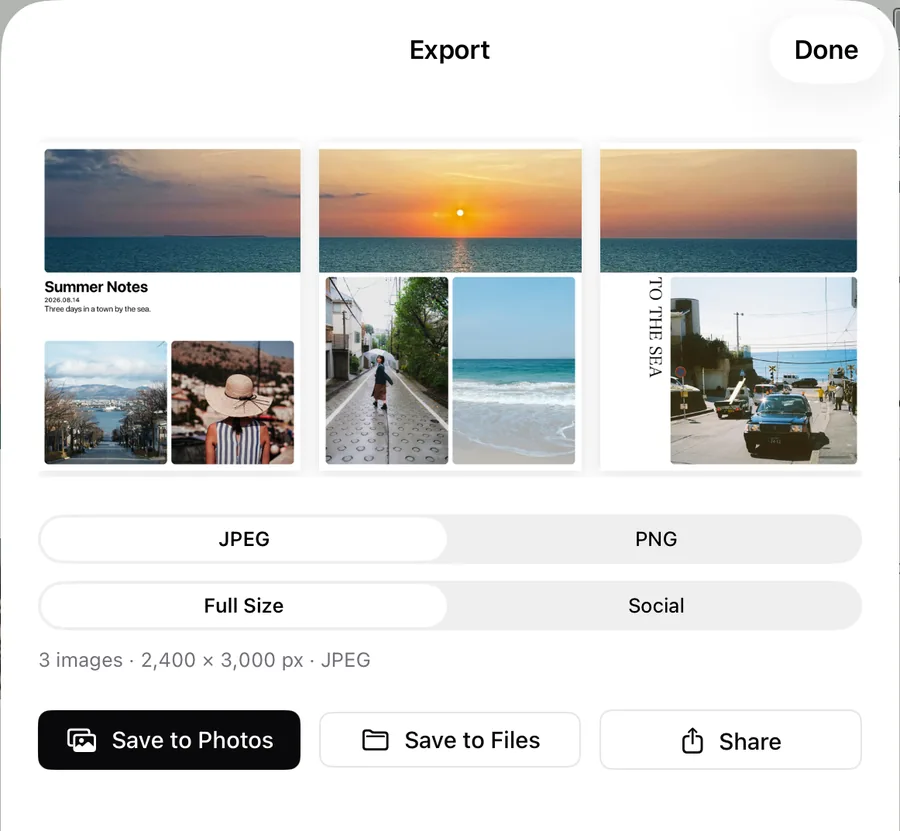
Exporting
The preview is the images you're about to save.
- PreviewOne image per page.
- JPEG / PNGJPEG for photos; PNG for text-heavy or exact colors.
- Full Size / SocialSocial is 1080 px on the short side.
- Save to PhotosAsks permission to add photos the first time.
- Save to Files"Save…" on Mac.
- ShareAirDrop or other apps.