A collage app for iPad, iPhone and Mac

Lay out your photoson a grid.

Import your photos, arrange them on a grid, export. Three steps to an image that works for social posts and for print.

Coming soon to the App Store See how it works

Story 2160 × 3840 px / Feed 2400 × 2400 px / A4 at 300 dpi

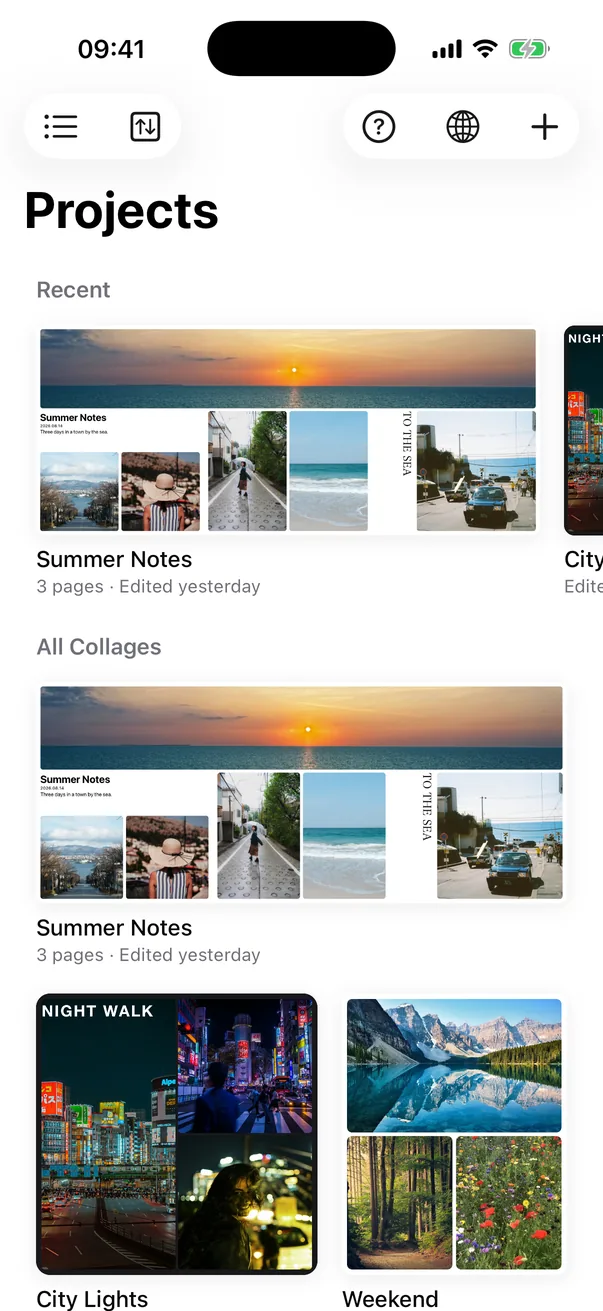
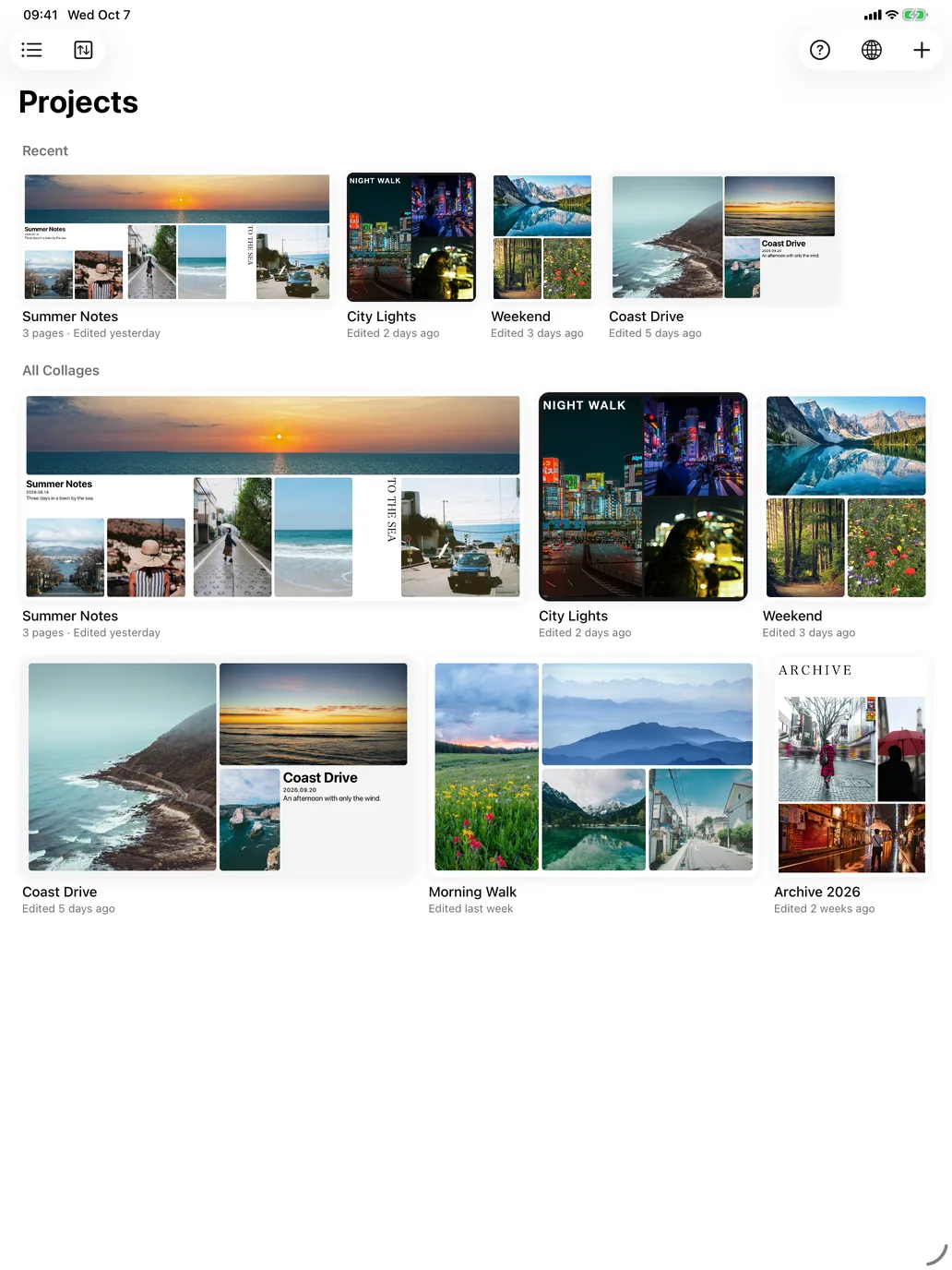
The Projects screen, with each collage shown as a tile in its own shape
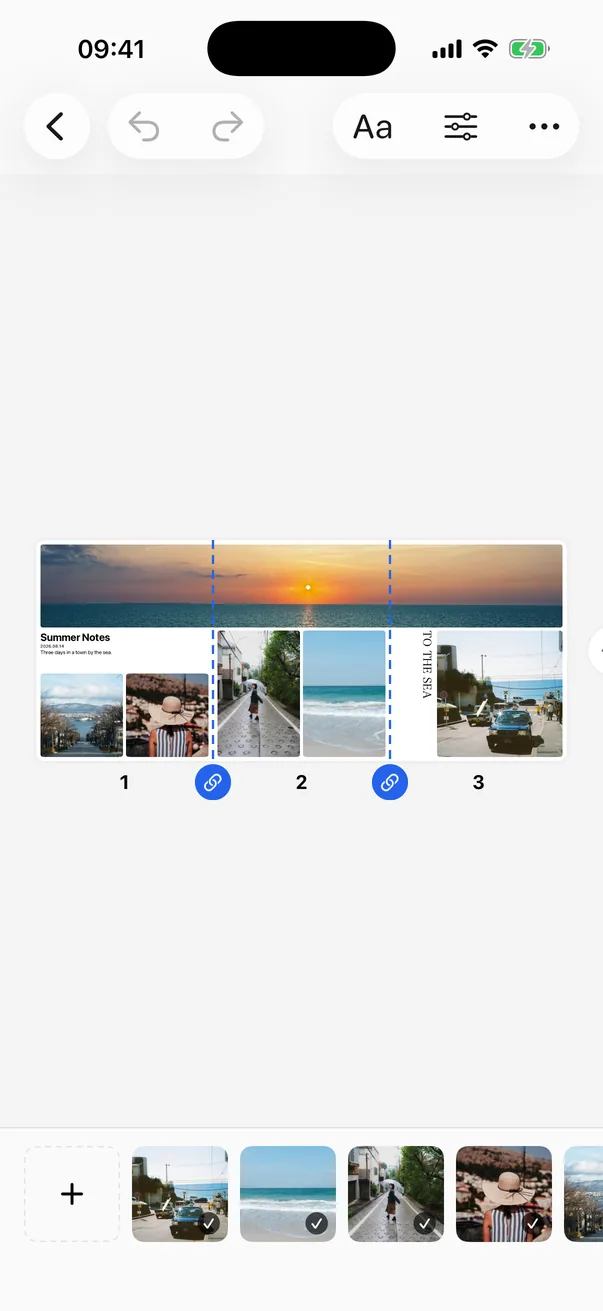
The editor on iPhone

From start to finish

Import. Arrange. Export.

Scroll, and a three-image carousel post comes together, right up to swiping through it.

  1. 01

    Import

    Pick photos and they arrive in the strip one at a time, in the order you picked them. Your photo library stays as it is.

  2. 02

    Arrange

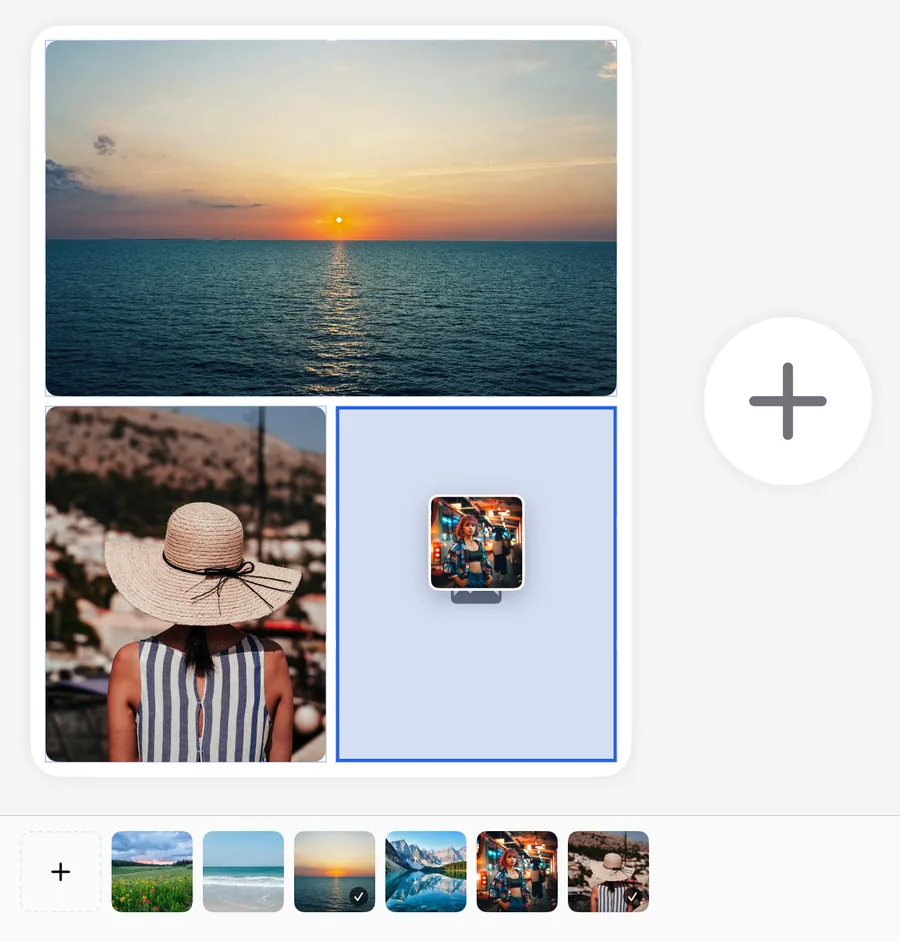
    Drag a photo up from the strip onto a frame. Frames snap to the grid's cells, and lines of text follow its rows.

  3. 03

    Export

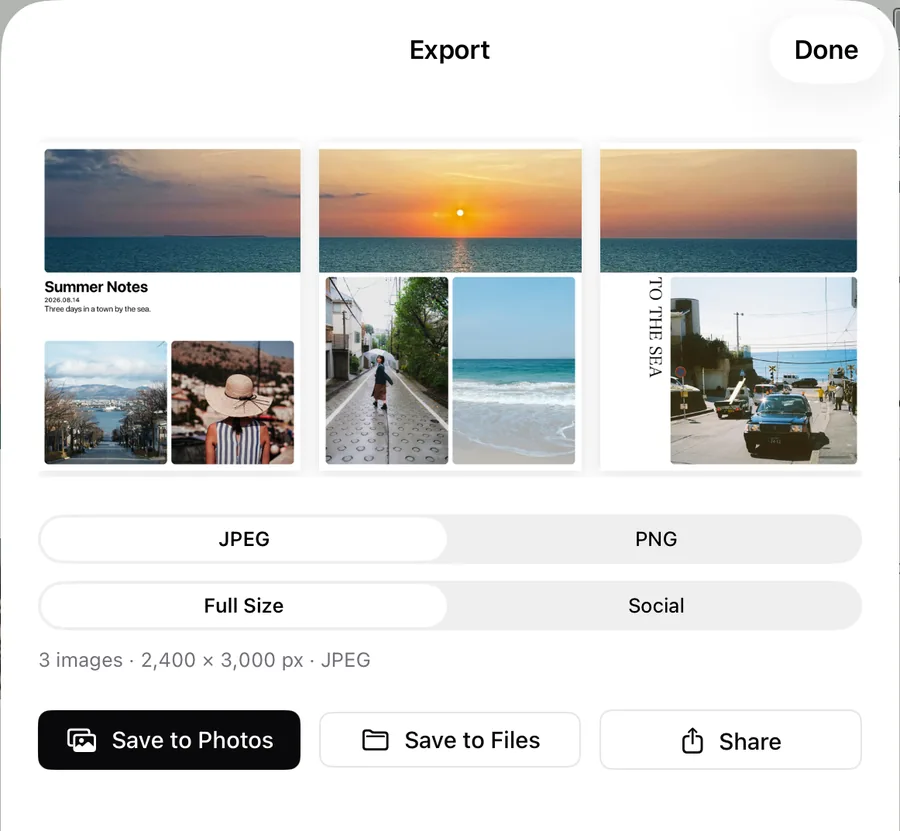
    Joined pages split at the seams into three images, already 4:5 for a post.

  4. 04

    Post

    Post all three together, and with every swipe the horizon runs on into the next image.
Easy to import

Pick them,and they're ready.

Importing is the first step of the layout. Grid keeps the order you picked and leaves your originals alone.

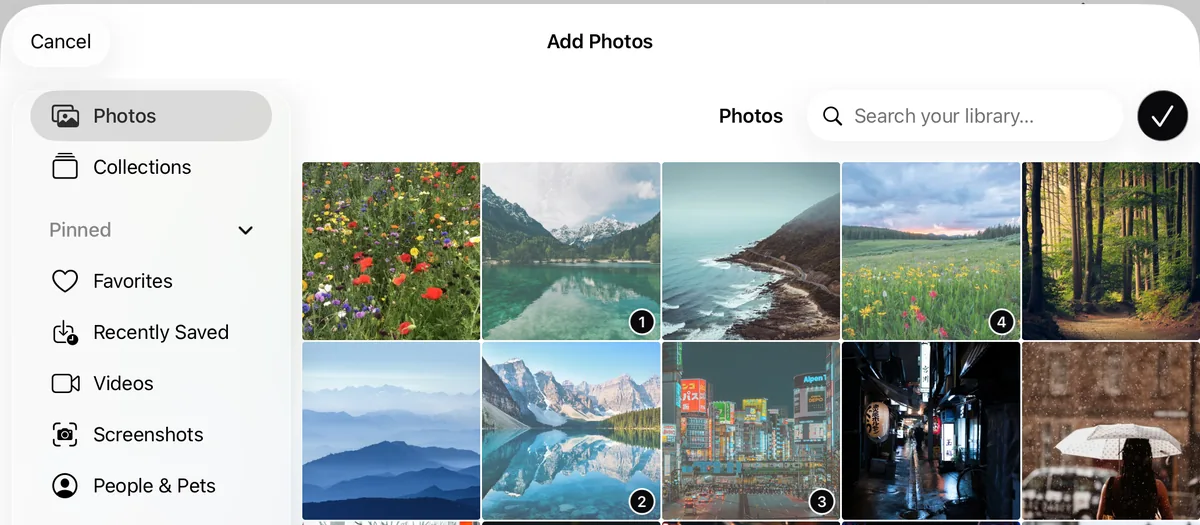
A big photo picker
It fills the window, so you can compare photos as you choose. The order you pick is the order they line up in.
Drag from other apps
With Photos or Files open in Split View, drag pictures straight in. On Mac, drag from the Finder.
Your library stays put
Photos are copied into the app. Grid never asks for your whole library, and deleting an original won't break a collage.
The full-window photo picker, with four photos numbered 1 to 4 in the order picked
A big photo picker
A photo lifted from the strip and carried over an empty frame
From the strip onto an empty frame

Easy to arrange

With a grid,everything lines up.

Every frame sits exactly on the grid's columns and rows, so even a quick arrangement looks considered.

Frames that snap
Drag to move, pull a corner to resize. Let go and the frame settles onto the grid's cells.
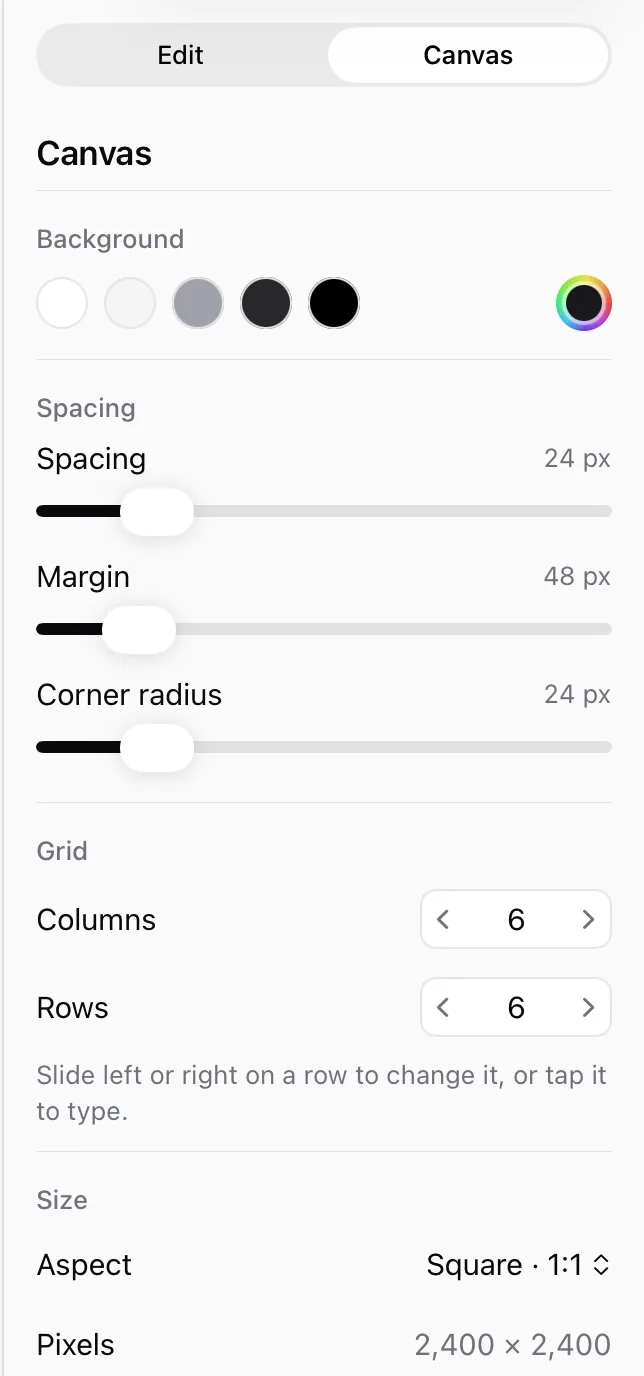
Slide to change the grid
Slide left or right on Columns and Rows. Your layout keeps its proportions.
Text on the grid too
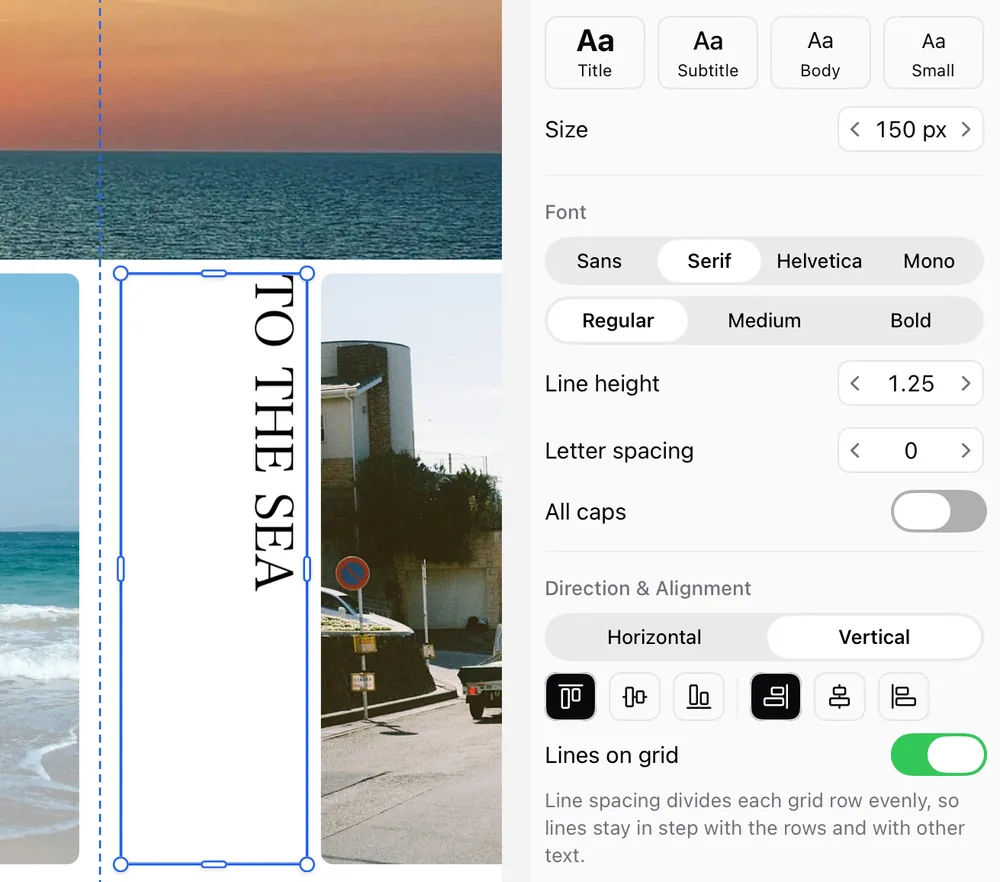
A title, date and text block, or vertical Japanese text: line spacing follows the grid's rows.
Move photos inside their frames
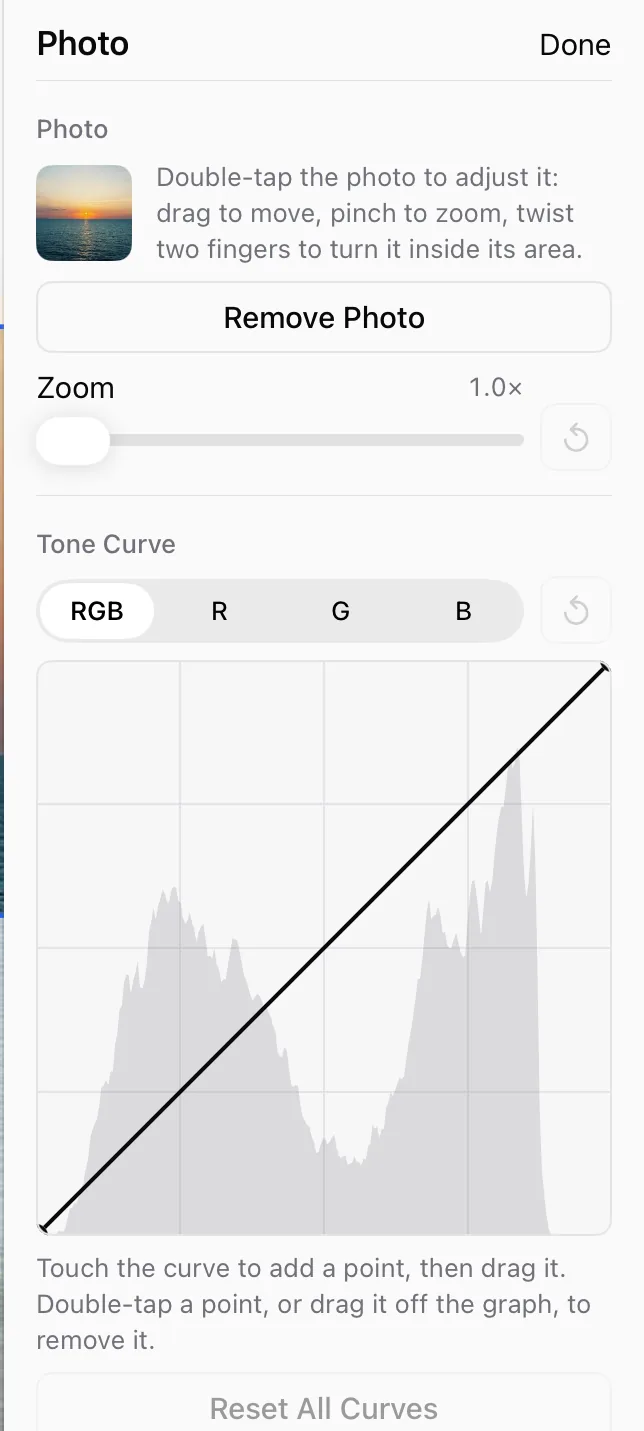
Double-tap to move, zoom and turn a photo. A tone curve evens out light and color.
Across pages
Join pages and one photo carries on into the next page. Made for carousel posts.

Try it

Columns 4
Rows 6

Drag a photo and it snaps to the grid's cells. Resize it from the bottom-right corner. With a keyboard, arrows move and Shift-arrows resize.

Vertical text selected, with Vertical chosen in the inspector
Text on the grid too
Canvas settings: background, spacing, margin, corner radius, columns and rows
Slide to change the grid
The photo inspector, with zoom and a tone curve
Move photos inside their frames

Easy to export

Exportingwithout second-guessing.

Choose a format and a size, nothing else. The preview is the file you're about to save.

See the real thing
The preview shows the actual images you'll save, so the result never surprises you.
Two sizes
Full size, or social (1080 px on the short side). JPEG or PNG.
One image per page
A three-image carousel becomes three images, in the order you'd post them.
Save it where you want
Save to Photos, save to Files, or send it from the share sheet.
The export sheet: previews of three pages, JPEG or PNG, Full Size or Social, and save buttons
Canvas sizes
ShapeRatioFull sizeSocialFor
Square1:12400 × 24001080 × 1080Feed posts
Portrait4:52400 × 30001080 × 1350Feed posts
Story9:162160 × 38401080 × 1920Stories and reels
Landscape3:23000 × 20001620 × 1080Photo prints
Wide16:93840 × 21601920 × 1080Screens and video
A41:1.412480 × 35081080 × 1528Print, 300 dpi

Everywhere

The same onevery device you have.

iPhone, iPad and Mac
The layout adapts to the screen. On Mac, menus and keyboard shortcuts too.
Three languages
English, 日本語 and 简体中文. Switch any time from the Projects screen.
A two-minute tour
Speech bubbles guide you through making a real collage while you learn.
Undo anything
Every step can be undone and redone. Your work saves itself.
The Projects screen on iPhone
The editor on iPhone

Privacy

No account. No tracking.

Your photos and collages are handled on your device. Grid collects no data and shows no ads.

Read the privacy policy